 Knightlite Software Study Helper App Guide Knightlite Software Study Helper App Guide
This study helper app is designed to enhance your learning by providing customizable study sessions. It allows you to focus on specific questions from your reading material, track your progress, and review key concepts with ease. With features like quiz settings, chapter breakdowns, vocabulary support, and the ability to review incorrect answers, this app helps you study smarter. Whether you're preparing for an exam or just reviewing, this app is a flexible tool that adapts to your study needs.
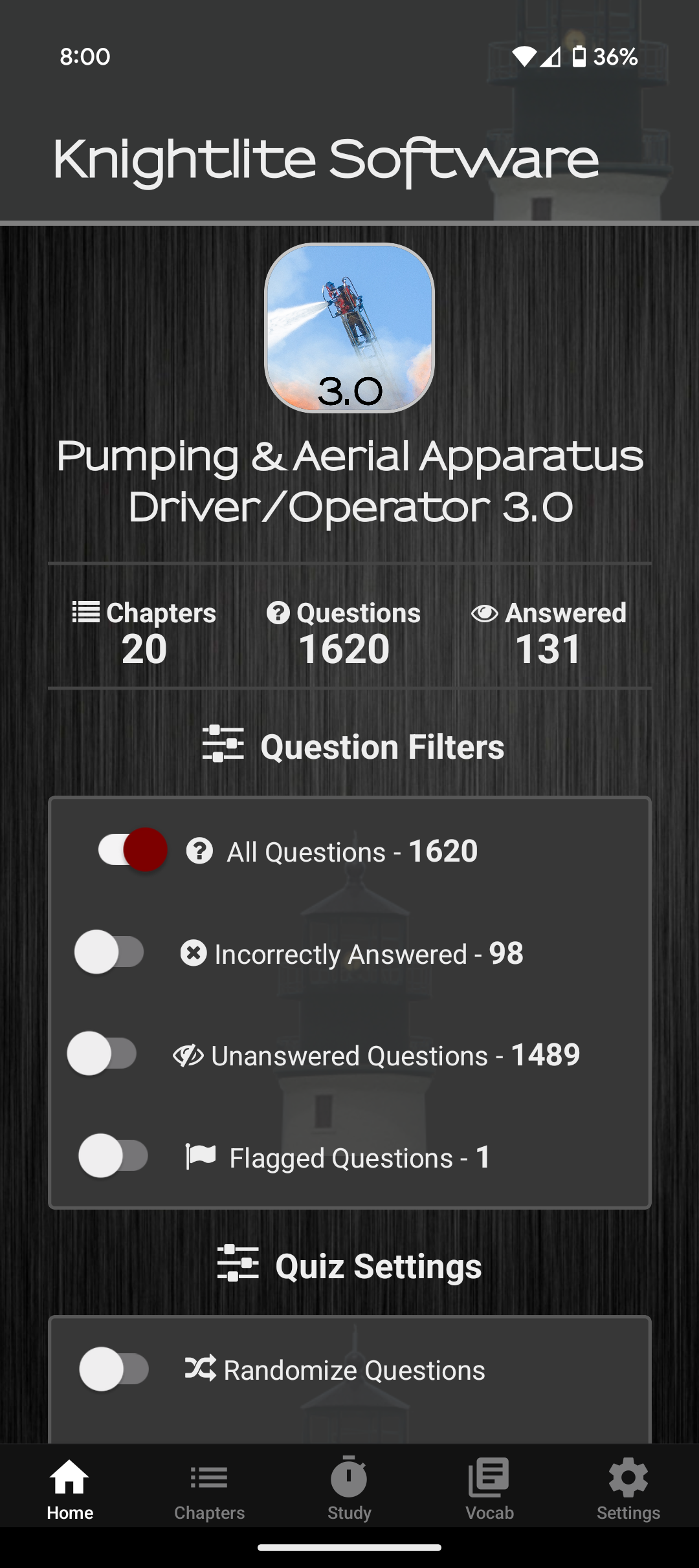
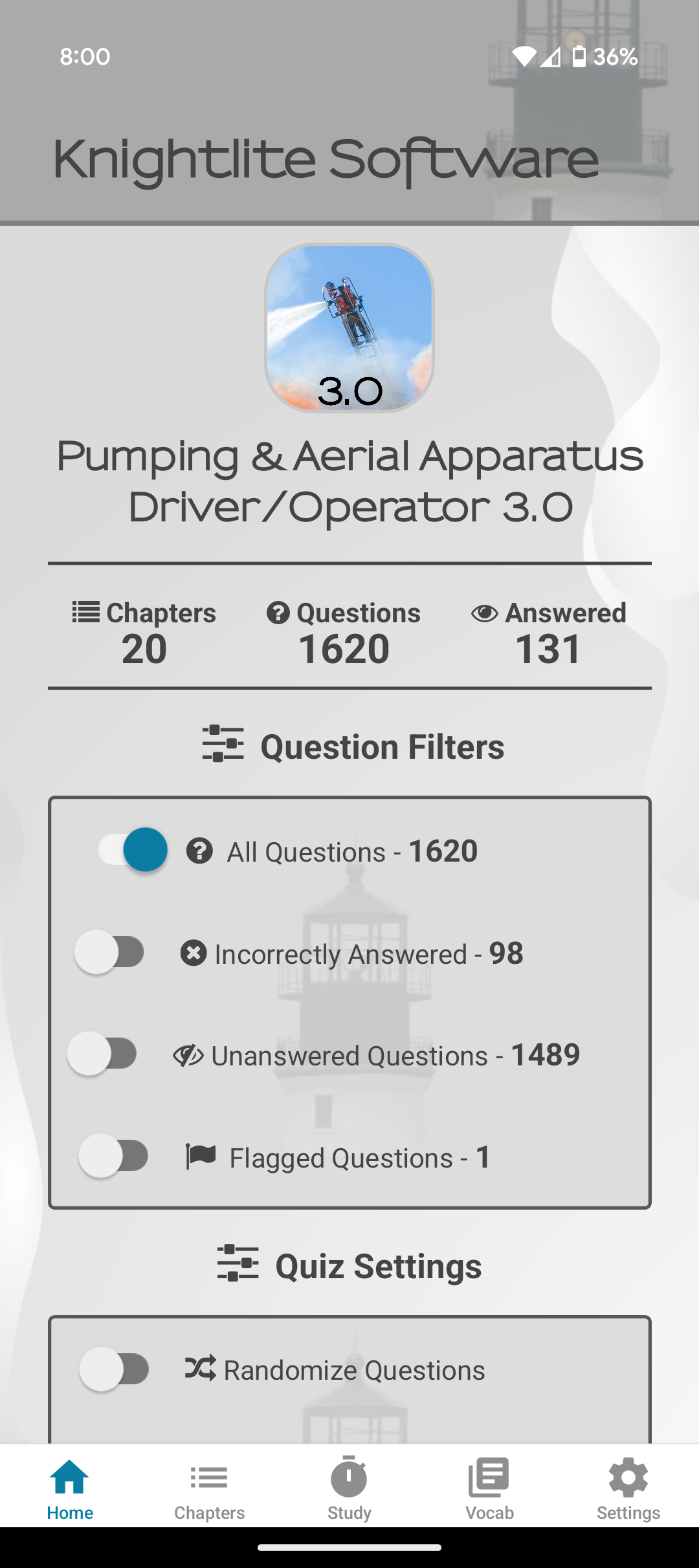
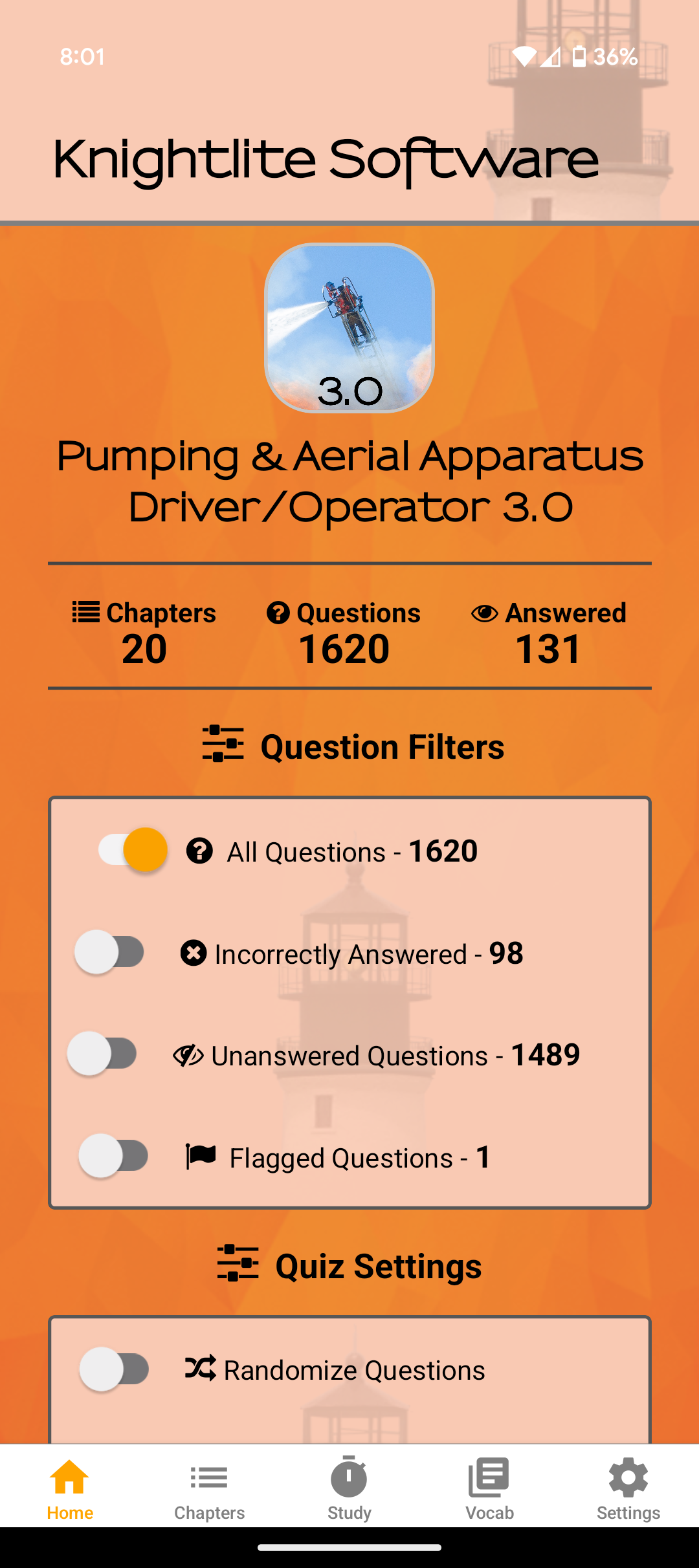
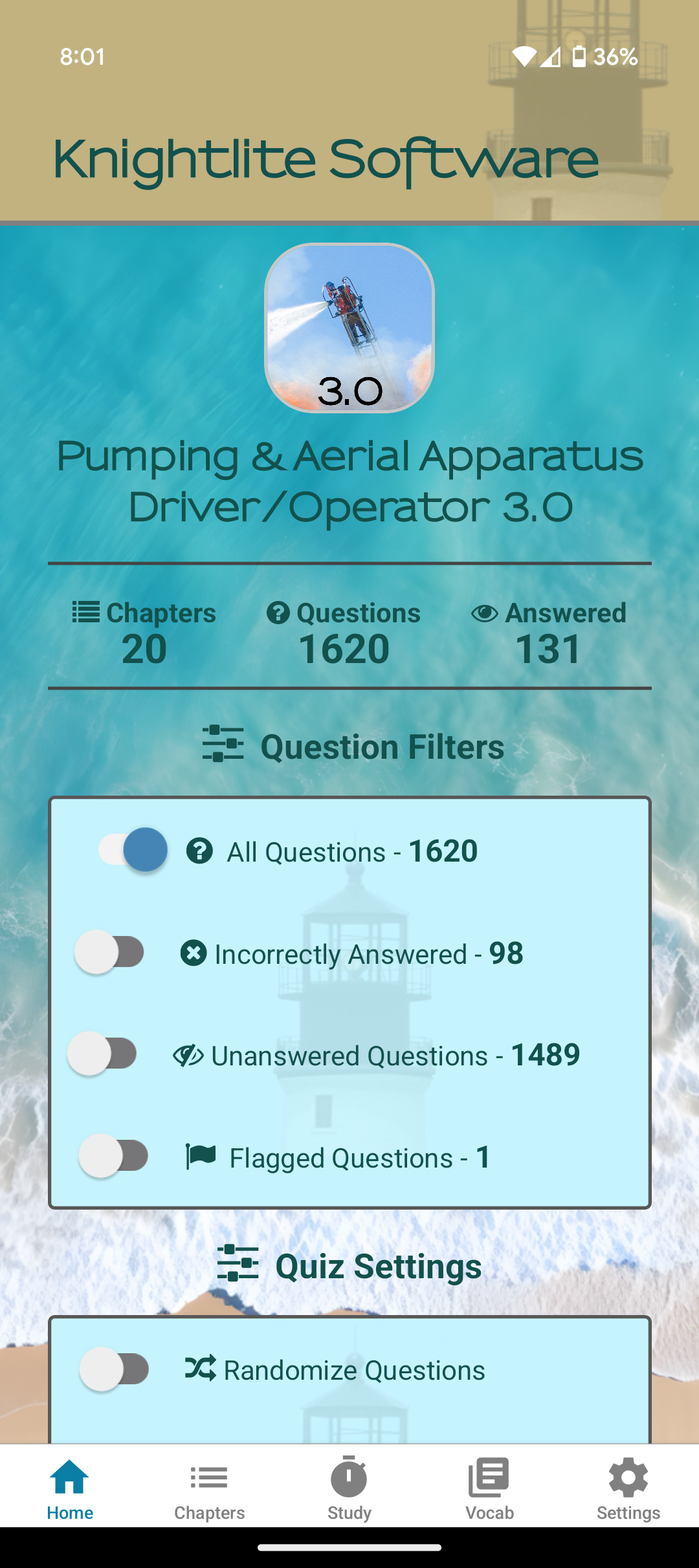
The Home tab provides an overview of your study progress. It displays the total number of questions available in your study set and the number of chapters from your book. These chapters correspond directly to the sections in your book.
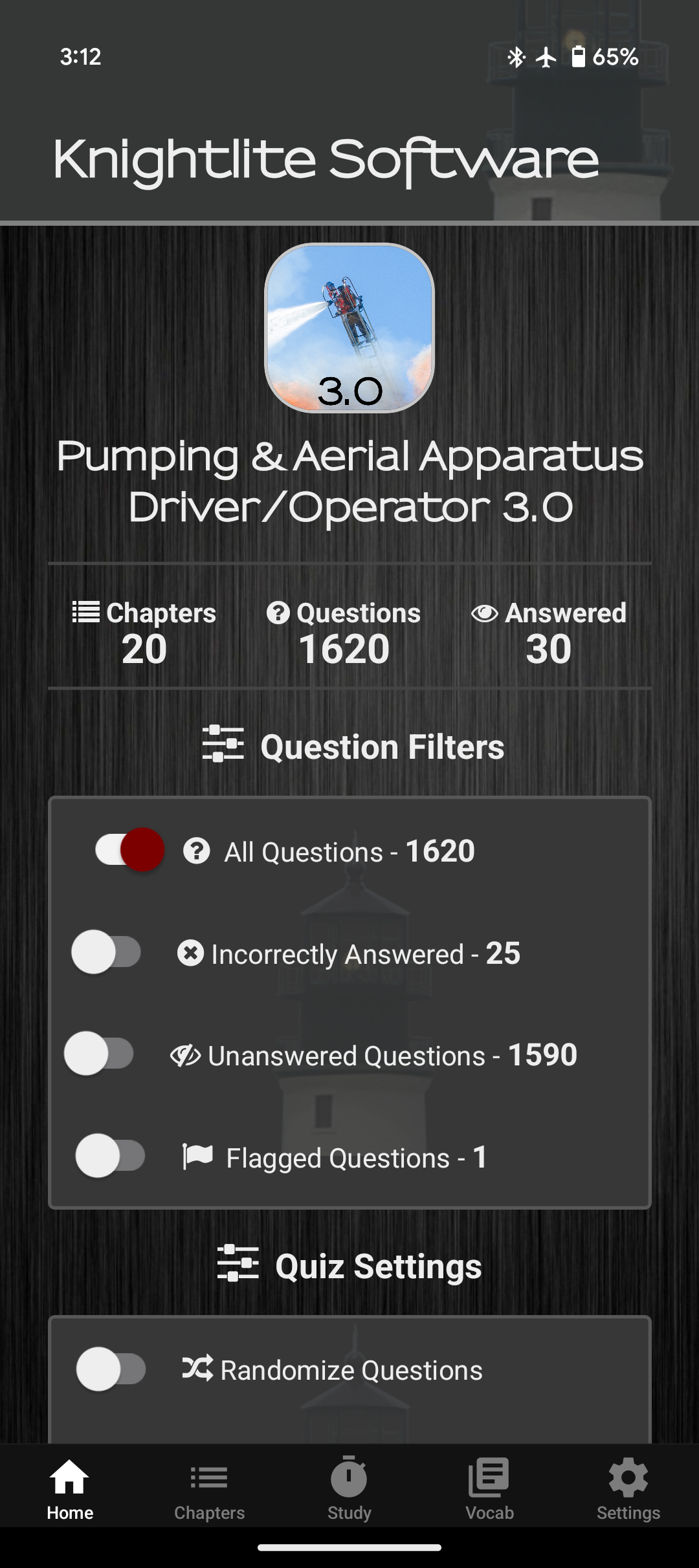
Below the overview, you'll find the Quiz Settings. These options allow you to customize which questions appear in your Study Tab. If your study set contains hundreds or even thousands of questions, these filters help you focus on the content most relevant to your study goals.
Once you've set your preferences, you can either load all questions or select a specific chapter to apply these settings.
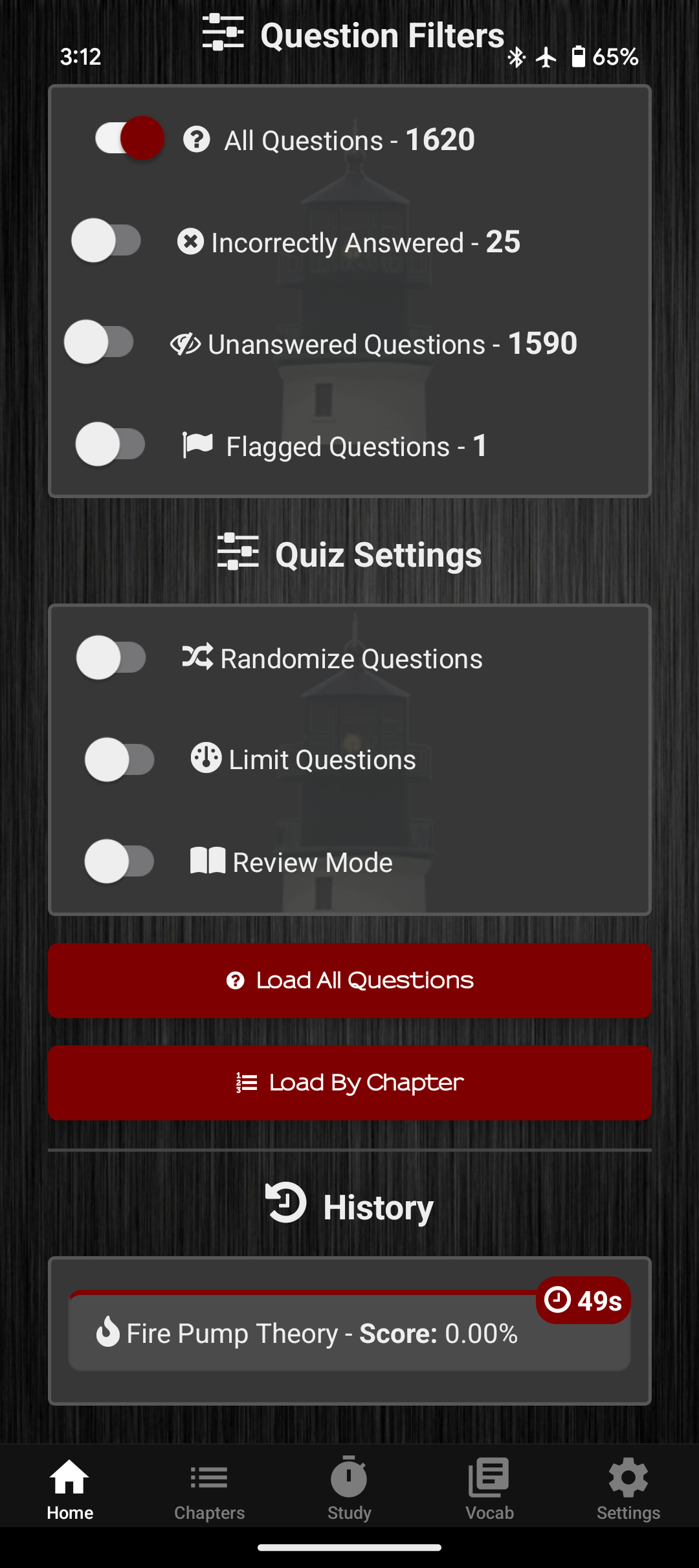
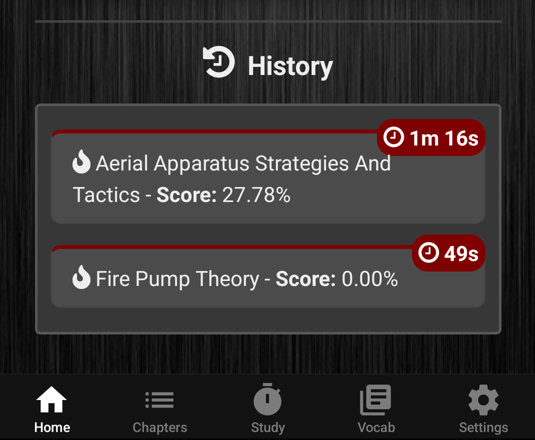
The History section keeps track of all your past quizzes. It shows you which questions you selected, the time it took to complete the quiz, and your score. Clicking on any past quiz will give you a detailed view of the incorrect answers and additional score insights. You can also clear your quiz history if you’d like to reset it.
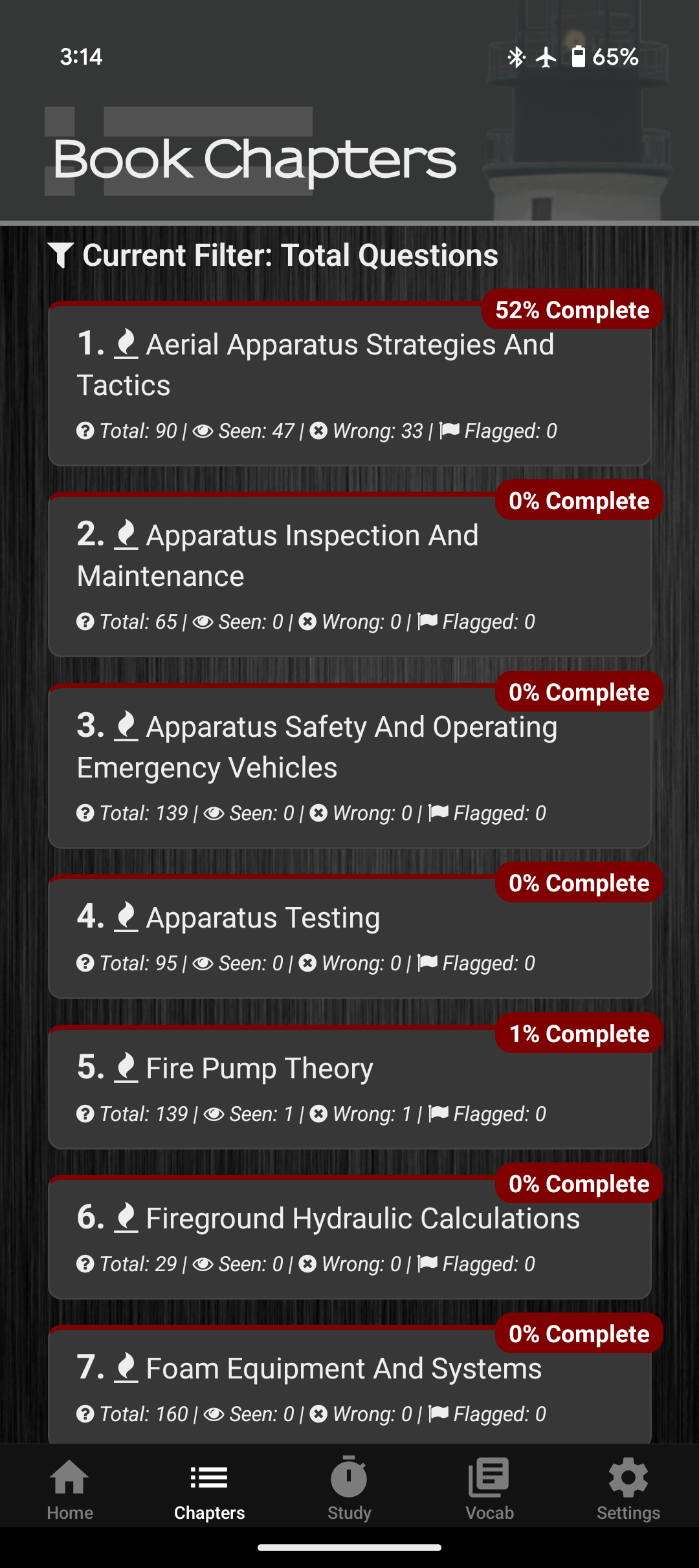
The Chapters Tab organizes all questions based on the chapters in your assigned reading material. Each chapter is listed along with key details, including the number of questions it contains and your performance in each chapter.
Additionally, you'll see a percent complete for each chapter, helping you track your progress and focus on areas that may need more attention.
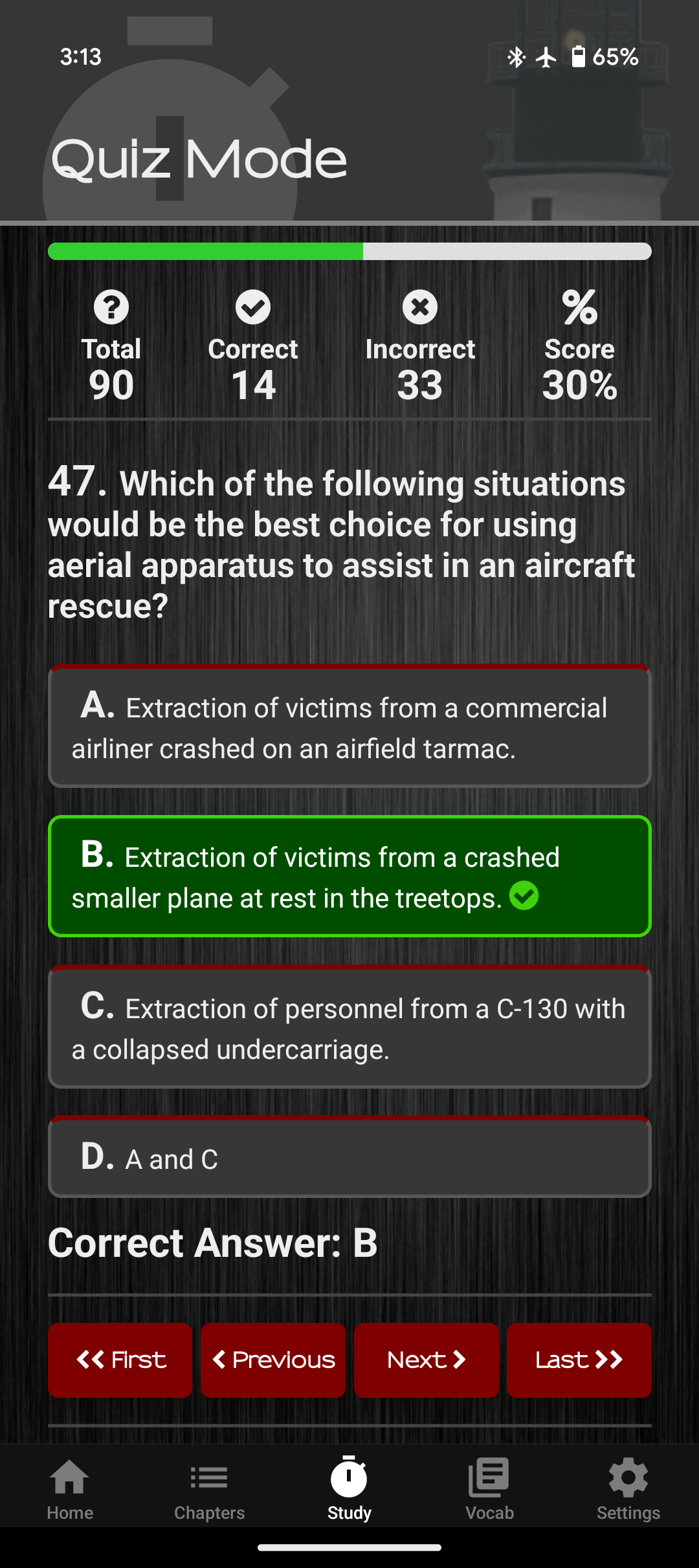
Once you've selected your quiz preferences on the Home screen, you'll be directed to the Study Tab. At the top, you'll see a green progress bar that fills up as you answer questions, giving you a quick view of your progress.
Each question will appear with four possible answers. Tap the answer you think is correct, and the result will be displayed immediately. Your selected answer will be highlighted in green if it's correct or red if it's incorrect.
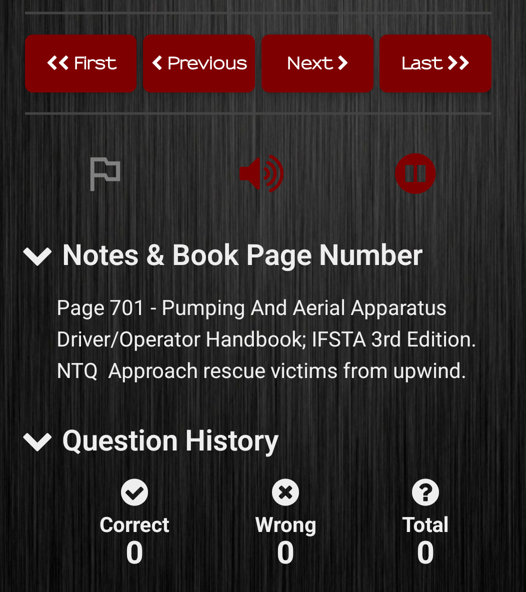
In the Notes section, you can see where the question appears in the book, helping you refer back to the material.
At the bottom of the tab, you’ll be able to track your performance on each specific question. It shows how many times you’ve answered the question correctly or incorrectly.
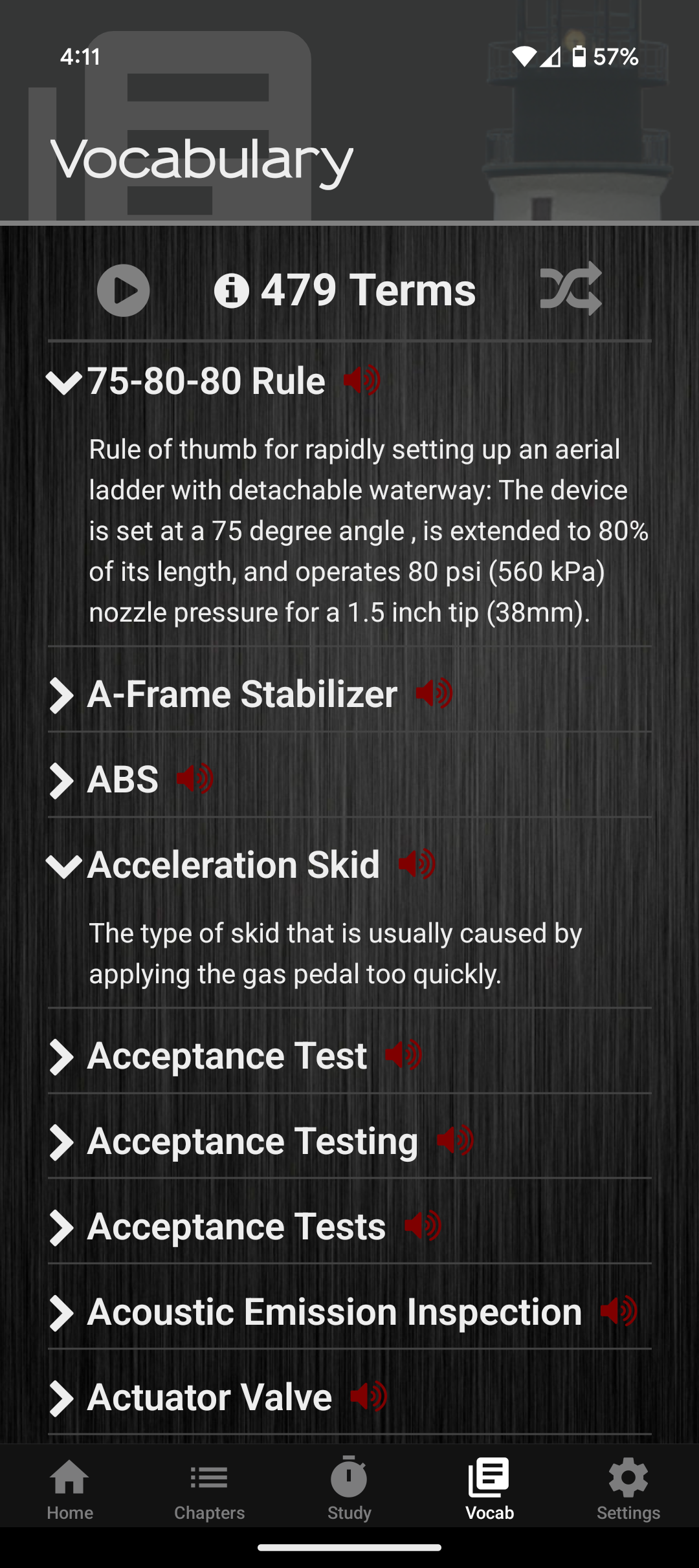
The Vocab Tab provides a list of helpful vocabulary terms found in your book. This is especially useful if you come across an acronym or term you’re unfamiliar with. To view the definition of a term, simply click on its title, and the definition will expand below.
You can easily switch between the Vocab and Study tabs without losing your progress, making it easy to review terms while studying.
By default, the terms are listed in alphabetical order, but you can shuffle them by tapping the Randomize button at the top of the screen.
Each term can be read aloud using Voice Assist, and if you prefer, you can have all the terms read out at once to study on the go.
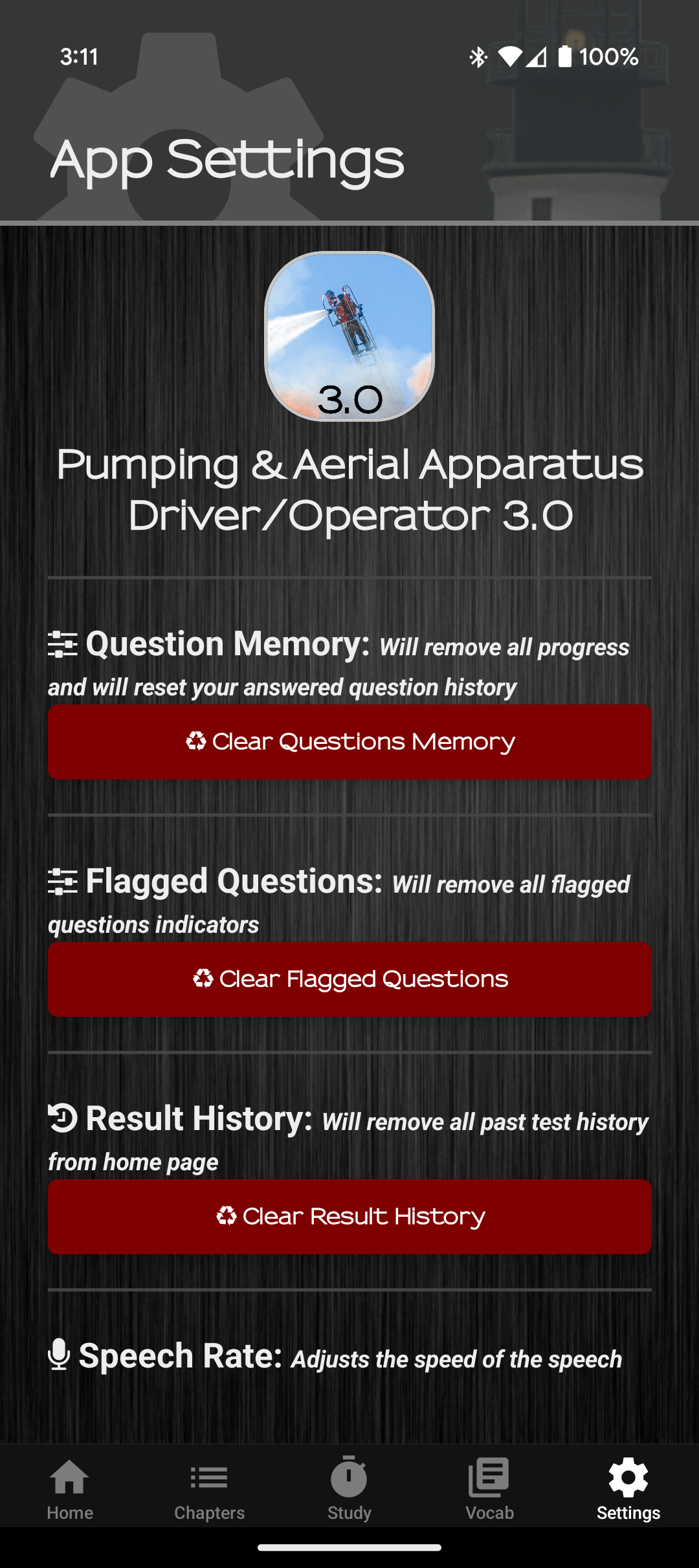
The Settings Tab allows you to manage your progress and customize your experience.